Virtual backgrounds for Zoom and Google Meet
Everyone on the call can see who you are, and point a phone at the corner to keep your details.
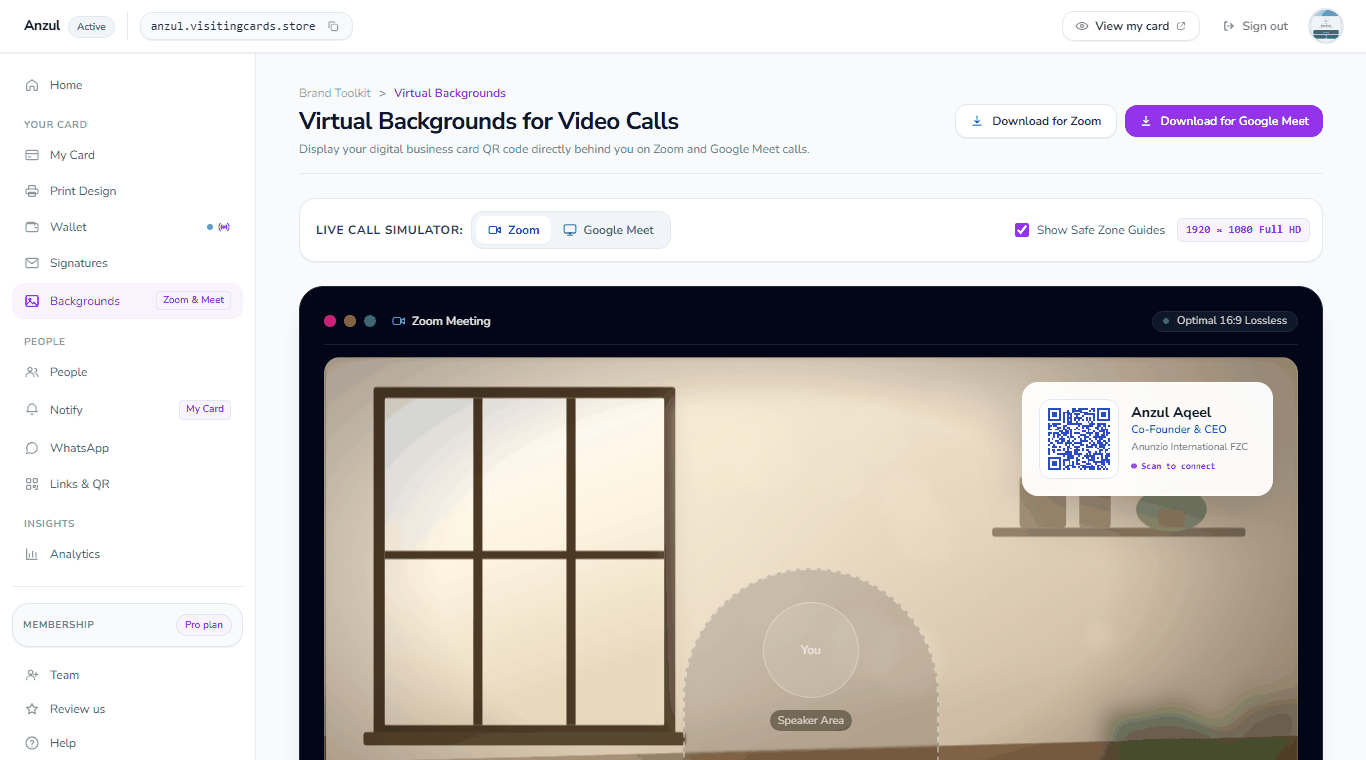
A virtual background is the picture behind you on a video call. Ours carries a small white card with your name, your job and a QR code that opens your business card, framed for Zoom or Google Meet so nothing hides behind the controls.
What is a virtual background?
It is a picture your meeting app puts behind you instead of the room you are sitting in. You choose it once in the app's own settings and it is there on every call.
Ours is that picture with your details drawn into a corner of it: a small white card with your name, your job title, your company and a QR code. Anybody on the call can point a phone at their screen and land on your business card, where your details save to their phone in one tap. Nobody has to type a name into a chat box or spell an email out loud.
The file is a plain 1920 x 1080 picture, which is the size meeting apps ask for, so it works anywhere a custom background is allowed. The framing is what changes: Zoom keeps its controls at the edge, Google Meet puts a bar along the bottom, and the card is placed to stay clear of whichever one you pick.
Zoom, Google Meet, and anywhere else you meet
Zoom and Google Meet each get their own framing on the screen. The file itself is an ordinary picture, so any other app that takes a custom background takes this one.
Framed for
- Zoom
- Google Meet
And it opens in
- Microsoft Teams
- Webex
- Anything that takes a 1920 x 1080 picture
What a card on your background does for you
A code people can actually scan
The QR code is drawn by the same code that draws the one on your card, at a size that survives a video call, in a colour dark enough to read. Somebody holding a phone up to their screen gets your card; they do not get a blurry square.
- Drawn as a vector, so every edge lands where it should
- The ink is checked against the white card behind it before it is drawn
- The scan is counted on your own Links and QR screen
Never behind the controls
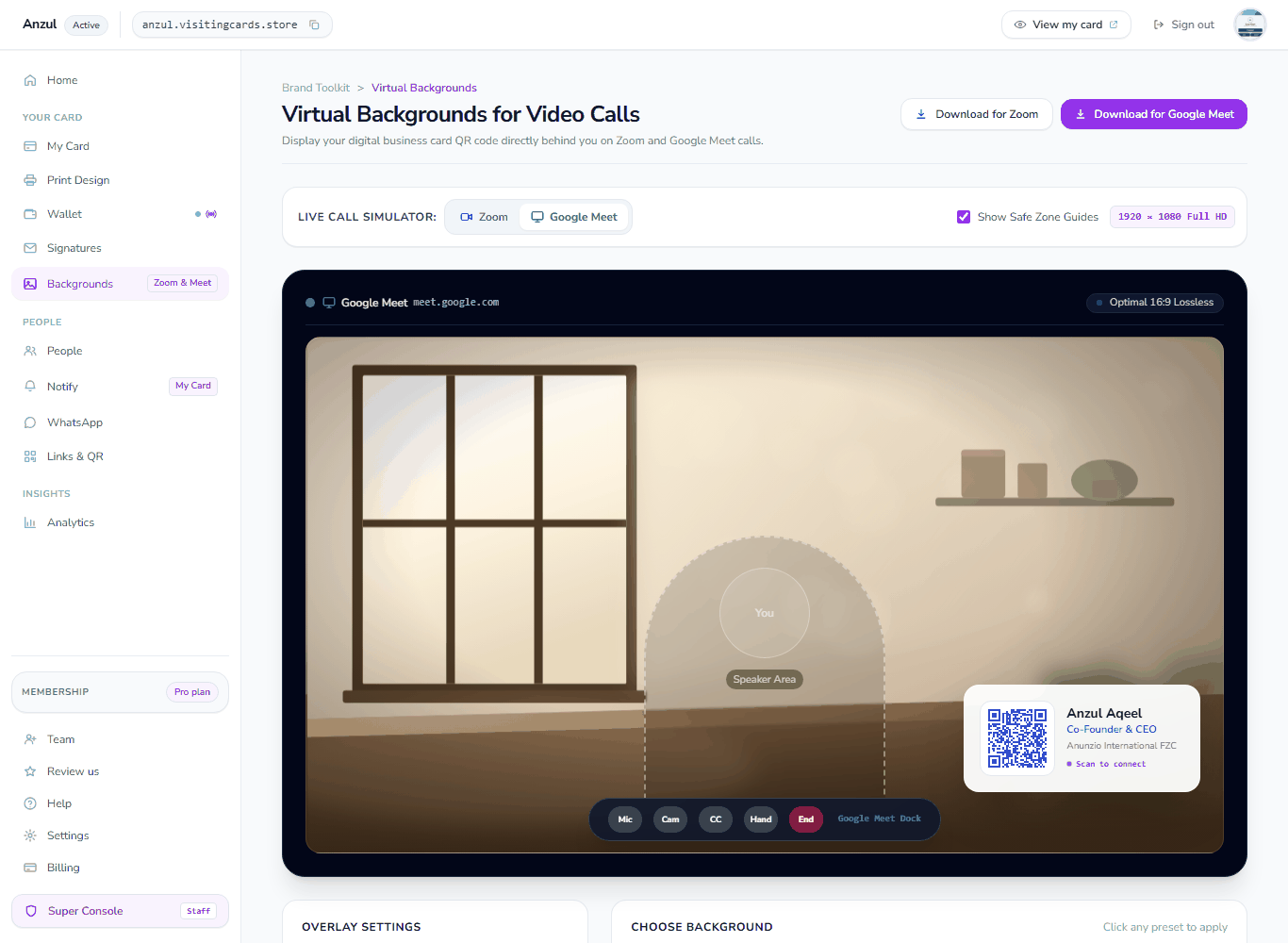
Google Meet keeps a strip of buttons along the bottom of the picture and Zoom does not, so a card in the bottom corner is fine on one and half hidden on the other. Pick the app you are on and the card is lifted clear of whatever sits there.
- Four corners to choose from
- Google Meet's bottom row is lifted above the controls
- Guides show the area your head and shoulders cover
Six backgrounds, or one of your own
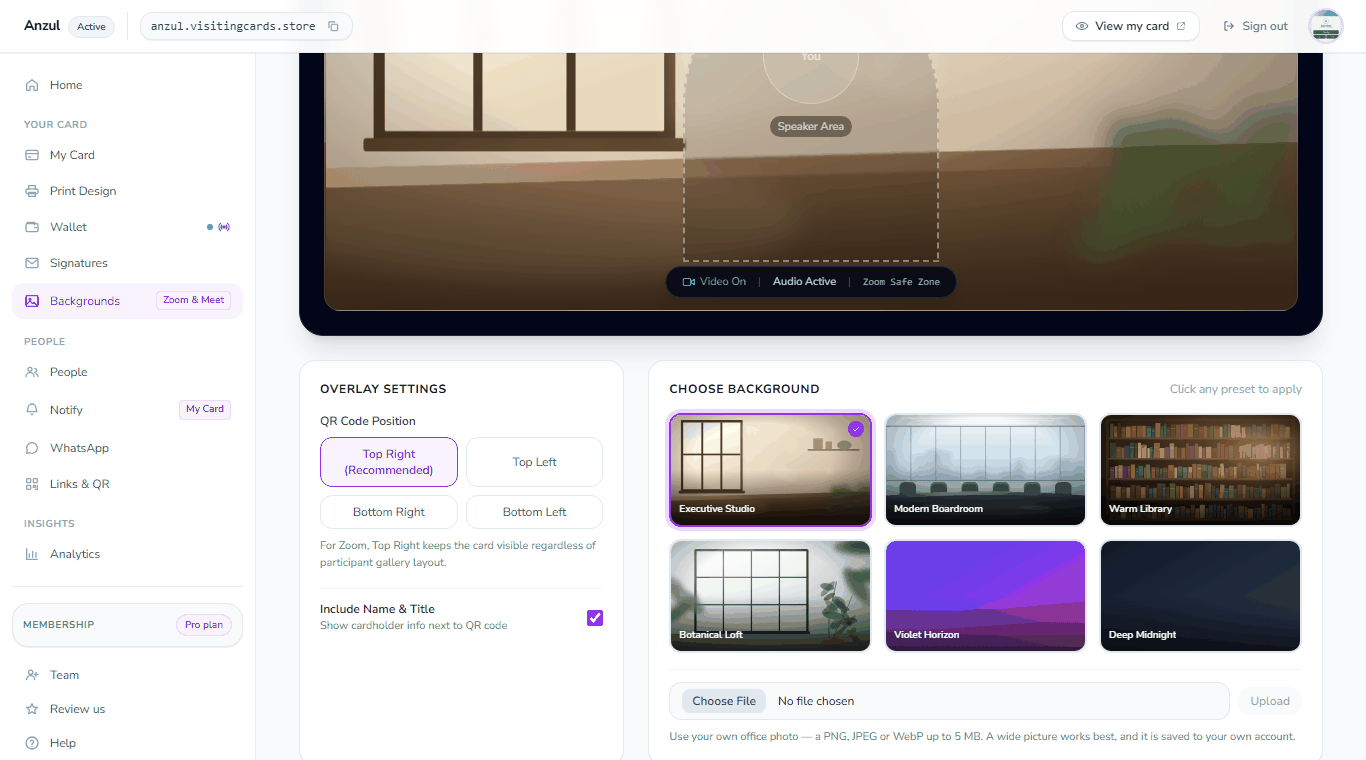
Six drawn backgrounds come with it, from a quiet studio to a deep midnight. If your company has its own picture, upload that instead and the card is drawn on top of it.
- Six backgrounds, drawn rather than photographed
- Or your own picture, uploaded to your account
- Your name and job title can be left off, leaving the code alone
Zoom and Google Meet, side by side
One file, framed two ways.
| Zoom | Google Meet | |
|---|---|---|
| Size of the file | 1920 x 1080 | 1920 x 1080 |
| Bottom corners | Close to the edge | Lifted above the control bar |
| Top corners | Close to the edge | Close to the edge |
| The QR code | Scans from across a desk | Scans from across a desk |
| Where you set it | Settings, then Background and effects | The three dots, then Apply visual effects |
How to make a virtual background
Make your card
Your name, job title, company and the ways people can reach you. The background is drawn from the same details.
Open Backgrounds
In your dashboard, open Backgrounds. Pick Zoom or Google Meet at the top, and the stage shows you what the call will look like.
Choose the corner and the picture
Pick one of the four corners for the card and one of the six backgrounds, or upload your own. Turn your name and job title off if you want the code alone.
Download it and set it
Press Download and open your meeting app's background settings, then add the picture you just saved.
Your card does more than a call
The same card that is on the wall behind you is in your emails and in their wallet.
The digital card
Your card on its own address, kept on their home screen and sending the notifications you write.
The digital card→Email signatures
Your card at the bottom of every email you send, with a code that opens it.
Email signatures→Email signature manager
One template for the whole company, the fields you lock, and a banner with an end date.
Email signature manager→Apple Wallet pass

Your card as a pass, beside their boarding passes, changing when your details change.
Apple Wallet pass→Google Wallet pass

The same pass on an Android phone, saved in one tap.
Google Wallet pass→Free card maker
Design a card and download it print-ready, with no account and no watermark.
Free card maker→Questions about virtual backgrounds
Does the QR code scan from a video call?
Yes. The code is drawn large and dark enough to be read off a screen by an ordinary phone camera, and it opens your card in the browser the phone already has.
Can I use the same picture in Microsoft Teams?
Yes. The file is a plain 1920 x 1080 picture, so any app that lets you add your own background takes it. The two framings on the screen are for Zoom and Google Meet, because those two put their controls in different places.
Will my name be readable to everybody on the call?
Your name and job title are drawn on a white card in a corner. If you would rather keep the picture quiet, switch them off and the card carries the code alone.
Can I use my company's own background picture?
Yes. Upload it on the same screen and the card is drawn on top of it, in the corner you chose.
Do I have to make a new one when my job title changes?
Download it again after you change your card and set the new picture in your meeting app. The QR code does not change: it points at your card, and your card is what you edited.
Bring your card to the call
Make your card, pick a corner and download the picture. The next meeting hands out your details without anybody typing.