Email signature manager
One design for everybody who writes on behalf of your company, and one screen that shows where it is.
An email signature manager is where a company decides how everyone's sign-off looks. You choose one template, lock the parts nobody should change, run a banner for a set period, and see who has their signature set up.
What is an email signature manager?
It is one screen where a company sets the shape of every signature its people send, instead of mailing a picture around and hoping everybody pastes it the same way. It sits beside Email Signatures in the dashboard, on the tab marked Org, and it is there on every company account.
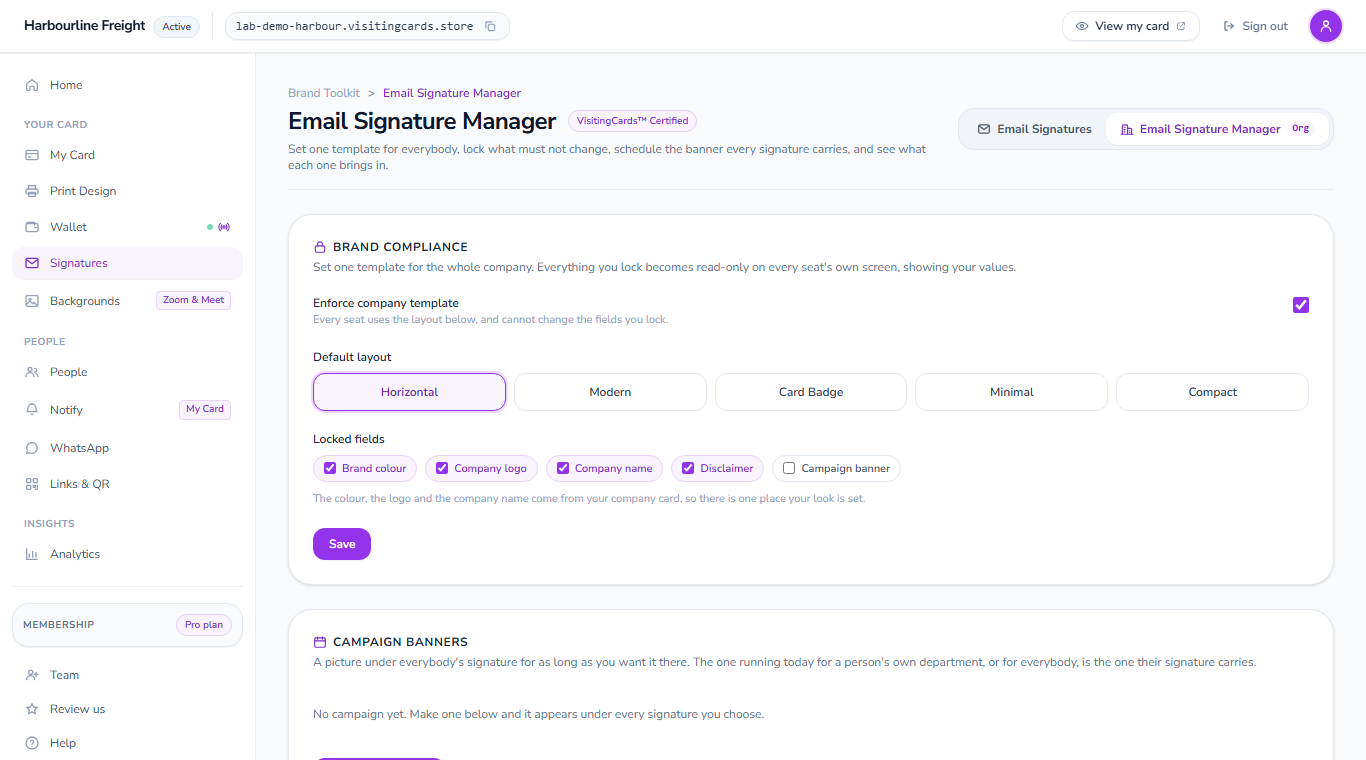
The owner of the company account, and anybody the owner has made an admin, run it. They switch the company template on, pick the layout everybody uses, and tick the fields that belong to the company: the brand colour, the logo and the company name come from the company's own card, and the disclaimer and the campaign banner can be locked as well. Everything left unticked stays in each person's hands, and their own name, job title, photo and number are always their own.
Every person on the account has a seat, and every seat has its own business card on its own link. That card is what their signature is built from. When a person opens Email Signatures in their own dashboard, their signature is already drawn from their card in the company's shape, with the locked fields shown read-only and a small lock beside them.
Nothing here reaches anybody's mail server. Each person still copies their signature and pastes it into their own mail app, from the same screen they use for their business card. What the manager decides is what they find there to copy, and the manager can send each person the link and the steps by email with one button.
Every mail app your people already use
Every signature is the same plain HTML, whatever your people use to read and write mail, and each one carries that person's own card link and QR code.
Mail apps
- Gmail
- Outlook
- Apple Mail
- Outlook on the web
- Thunderbird
Across the company
- One template
- Locked fields
- Departments
- Banners with an end date
- Seats you can hand to the next person
What the manager does for a company
One template, and the parts nobody may change
Switch on the company template and choose the layout once. From then on every seat's signature takes that shape, and the fields you tick are drawn from the company, not the person: the brand colour and the logo come from the company card, and the name is the company account's own, so there is one place your look is set.
- Five layouts to choose from, one of them for everybody
- Lock the brand colour, the logo, the company name, the disclaimer or the banner
- Everything left unlocked stays each person's own
A banner with a first day and a last day
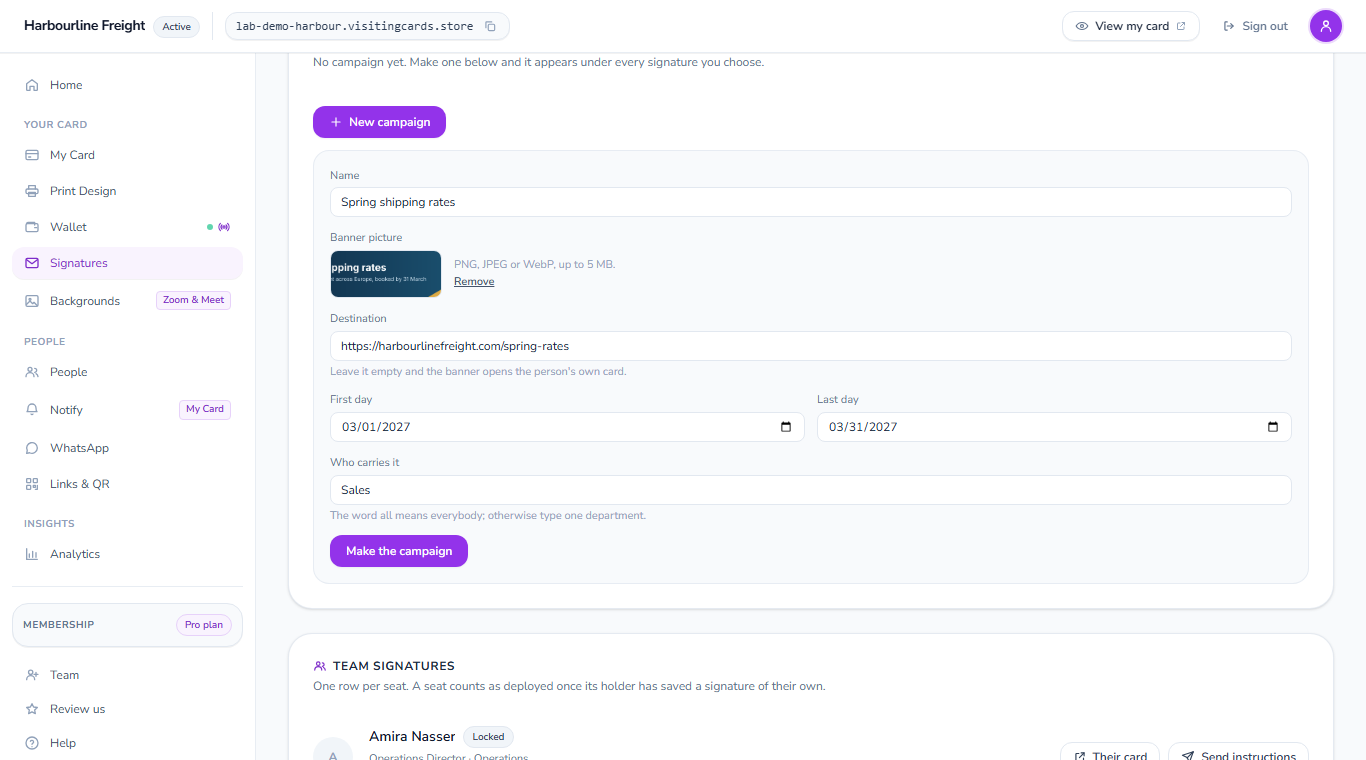
Put a picture under everybody's signature for a launch, an event or a season. You give it a name, the picture, the day it starts, the day it ends and the address it opens, and it takes itself down when the last day passes. Leave the address empty and the banner opens each person's own card.
- One banner for the whole company, or one for a single department
- The first and last day are the banner; there is no switch to forget
- Clicks on each banner are counted, so you can see which one worked
See who has theirs set up
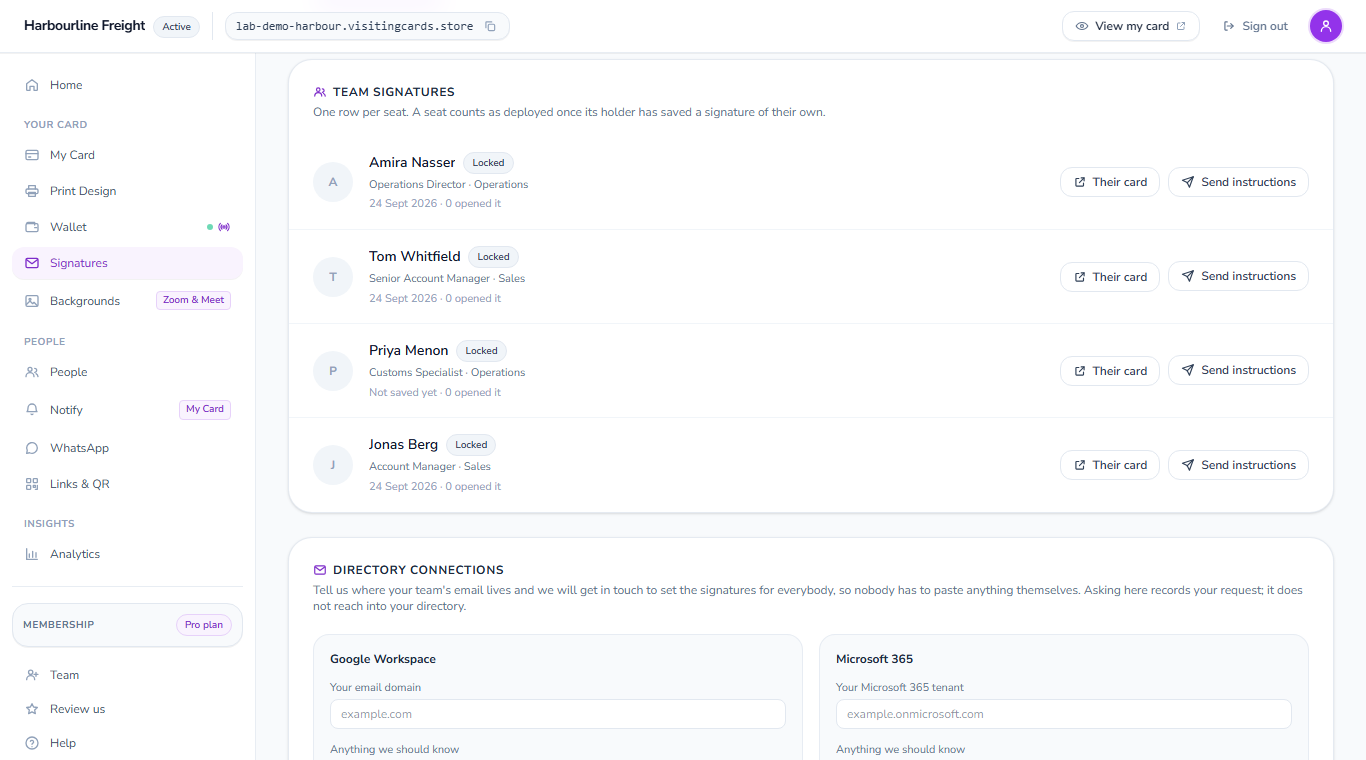
The team panel lists every seat on the account with the person's job and department, the day they last saved their signature or Not saved yet, and how many times it has been opened. It answers the question a brand rollout always ends on: who is still sending the old one.
- A row for every person on the account
- One button emails a person the link to their own signature and the steps
- A seat can be handed to the next person without starting again
What the company sets, what each person keeps
The line between the two is the whole point of the screen.
| The company sets | The person keeps | |
|---|---|---|
| The layout | Chosen once, for everybody | Read-only while the template is on |
| Brand colour, logo, company name | Taken from the company card when locked | Shown read-only, with a lock beside them |
| Name, job title, photo, number | Never touched | Theirs, from their own card |
| The banner | One picture, with a first and last day | Shown under their own signature |
| The card link and QR code | Never shared | Each person's own, counted on their own screen |
How to roll out one signature across a company
Make the company account
Sign up as a company and add your people as seats. Each person gets their own card on their own link.
Choose the template
Open Email signatures and switch to the manager. Switch the company template on, pick the layout everybody will use and press Save.
Lock what must stay the same
Tick the fields that belong to the company, such as the brand colour, the logo or the company name. They become read-only on everybody's screen.
Send everybody the steps
Press Send instructions beside each person. They open their own Email Signatures screen, press Copy signature and paste it into their mail app. The team panel shows you who has done it.
The rest of the brand toolkit
The same details that make the signature also make the call background, the wallet pass and the card itself.
The digital card
Your card on its own address, kept on their home screen and sending the notifications you write.
The digital card→Team cards
A card for every person on your company address, one look, and seats you hand on.
Team cards→Email signatures
Your card at the bottom of every email you send, with a code that opens it.
Email signatures→Virtual backgrounds
Your card and QR code behind you on Zoom and Google Meet calls.
Virtual backgrounds→Apple Wallet pass

Your card as a pass, beside their boarding passes, changing when your details change.
Apple Wallet pass→Google Wallet pass

The same pass on an Android phone, saved in one tap.
Google Wallet pass→Questions about company signatures
Does this write the signature into everybody's mailbox for them?
No, and no screen here says it does. Each person pastes their own signature into their own mail app, which takes them under a minute. The manager decides what they find there to copy.
Who can change the company template?
The owner of the company account and anybody the owner has made an admin. Everybody else sees the manager's decisions on their own Email Signatures screen and cannot change the locked parts.
Can two departments run different banners?
Yes. A banner can be for everybody or for one department, and the person's own department decides which one they see under their signature.
What happens when somebody leaves?
The seat is handed to the next person: the card link stays, the details change, and the new person's signature is right the first time they copy it. Nothing has to be reprinted or re-sent.
Can a person still change their own signature?
They can change everything you have not locked. With the template on, the layout is yours and the locked fields are shown to them read-only, with their own name, job title, photo and number still their own.
Do we need a plan for each person?
Each seat is a card, and the card is what the signature is built from. The team pricing page sets out what a seat costs.
One signature for everybody who writes for you
Set the template, lock what matters and send each person the steps. The team panel tells you when it is done.